
Note: These steps apply to StrongER Cloud only. If you use a local installation of StrongER, the reset process is different. See How do I reset my password?.
Before you start
- You'll need the email address linked to your StrongER Cloud account.
- You'll need access to that email inbox to receive the reset link.
Steps
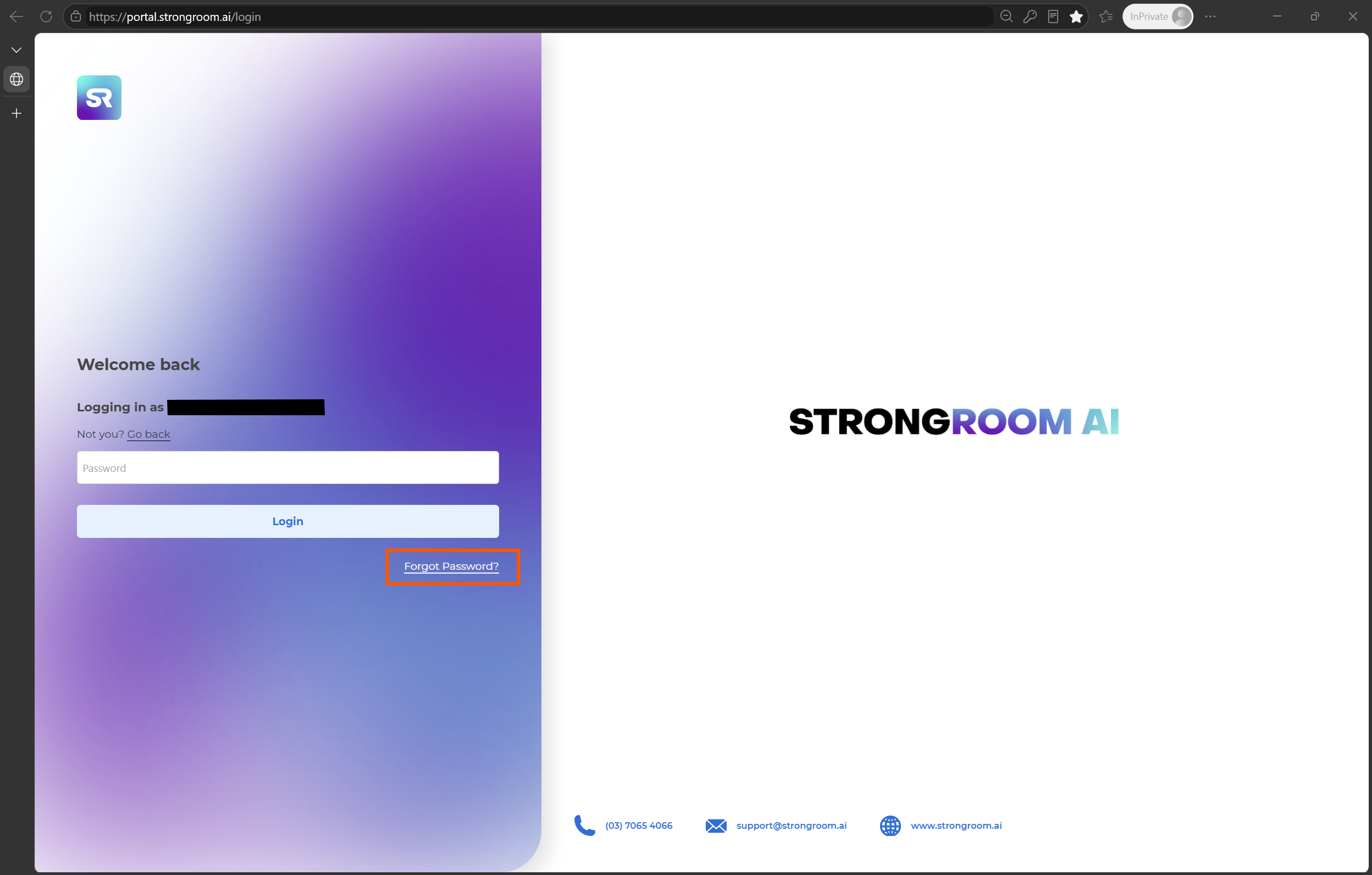
- Go to the Portal login page. Open your web browser and go to portal.strongroom.ai/login.
- Enter your email address. Type the email address linked to your StrongER Cloud account.
- Select Forgot Password? This appears below the login field.
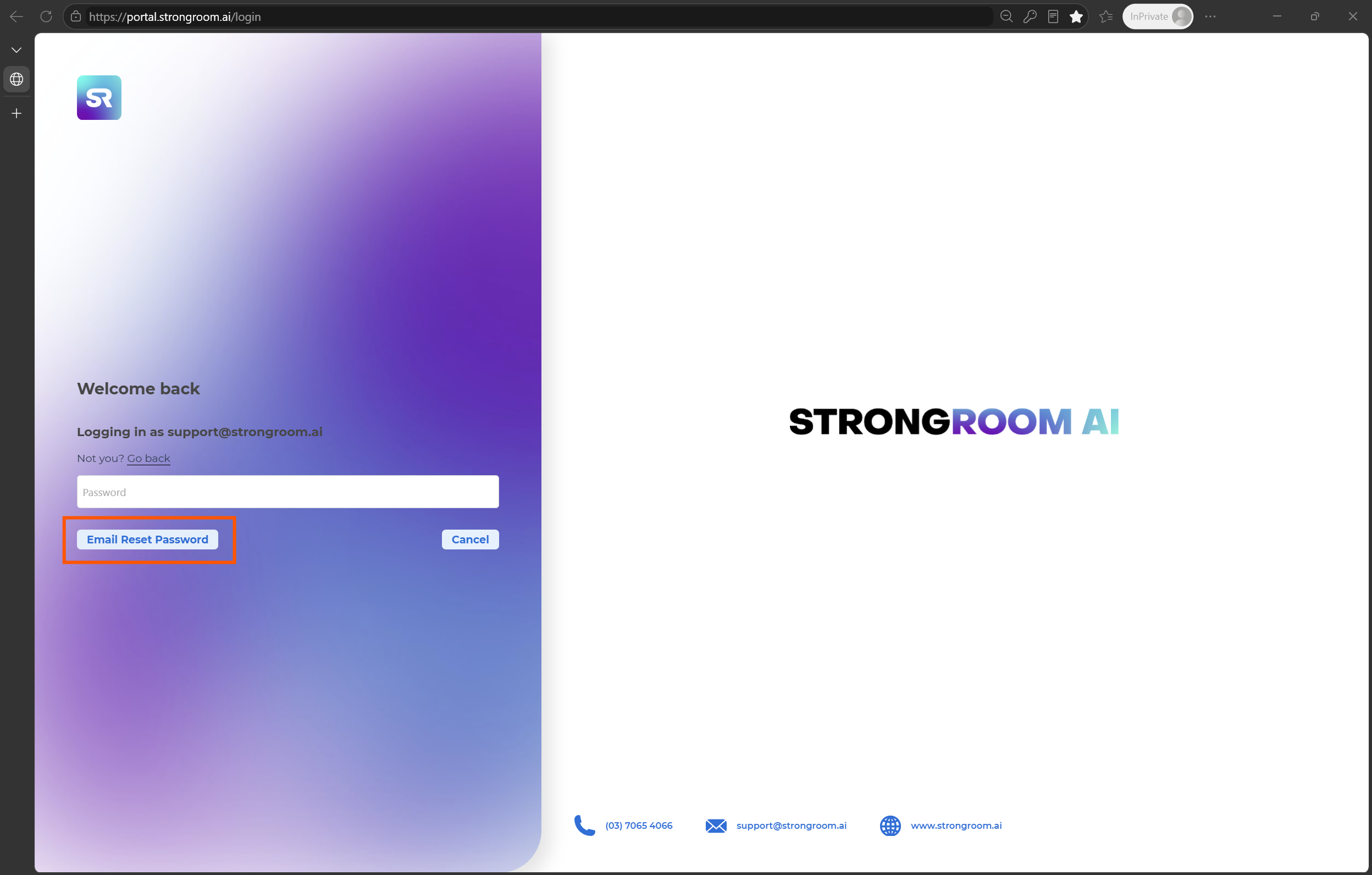
- Select Email Reset Password. We'll send a password reset email to the address you entered.
- Follow the steps in the email. Open the email from StrongRoom AI and follow the instructions to set a new password.
Common issues
- The reset email hasn't arrived: Check your spam or junk folder. Allow a few minutes for delivery, then try again.
- The email address isn't recognised: Make sure you're using the email linked to your StrongER Cloud account. If you're unsure which one it is, contact us.
- The reset link doesn't work: Reset links can expire. Return to the login page and request a new reset email or contact support.
- You use a local installation: This process won't reset a local StrongER password. See How do I reset my password?.