
Note: These steps apply to StrongER local only. If you use StrongER Cloud, see How do I reset my StrongER Cloud password?
Before you start
- A user with the Chief Pharmacist role must be available to complete the reset.
- If no Chief Pharmacist is available, contact support.
- Log in as a Chief Pharmacist. Check the role shown in the top-right corner of StrongER. If you're not logged in as a Chief Pharmacist, log out and switch users.
- Open the user list. Go to Lists > Users.
- Edit the user. Select the pencil icon next to the user who needs a password reset.
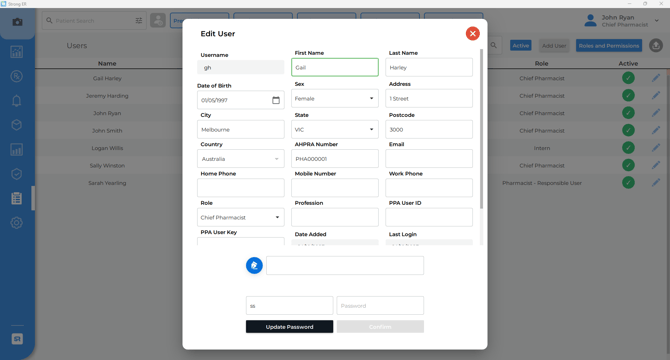
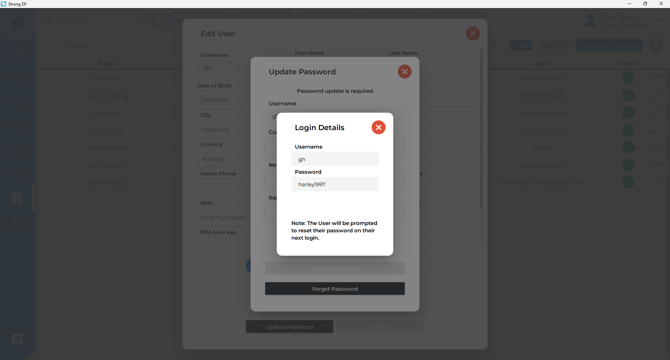
- Select Update Password. In the pop-up window, select Forgot Password.
- Note the temporary login details. A pop-up shows the user's Username and Temporary Password. The user will need both to log in.
- Log out. Select your name in the top-right corner, then select Logout.
- Log in with the temporary password. The user enters their username and temporary password, then follows the prompts to create a new password.
Common issues
- No Chief Pharmacist is available: Contact support.
- The new password isn't accepted: Make sure it hasn't been used in StrongER within the last 2 years.
- You use StrongER Cloud: This process won't reset a Cloud password. See How do I reset my StrongER Cloud password?