
Step 1: Navigate to User Management
- Log in to the StrongRoom AI Portal.
- Navigate to the left-hand sidebar and click on Products.
- Locate the location you want to invite users to, click the Ellipsis (...) icon next to it.
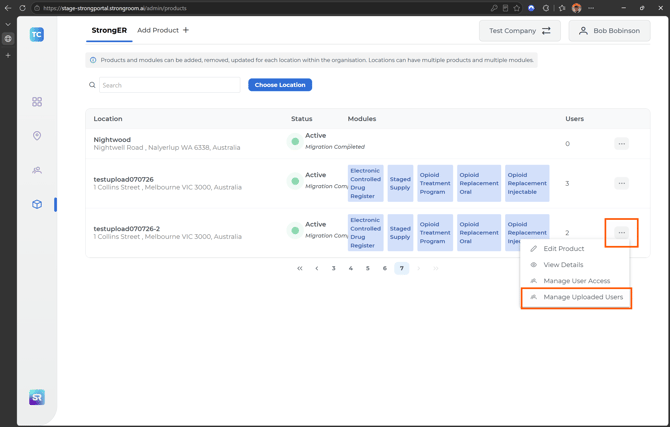
- Select Manage Uploaded Users from the dropdown menu.
Step 2: Enter User Details & Roles
- In the pop-up window, enter the Email Address of the user/s you wish to invite.
- Assign their permissions by selecting both their Portal Role and their StrongER Role.
- Check the Invite checkbox next to their details.
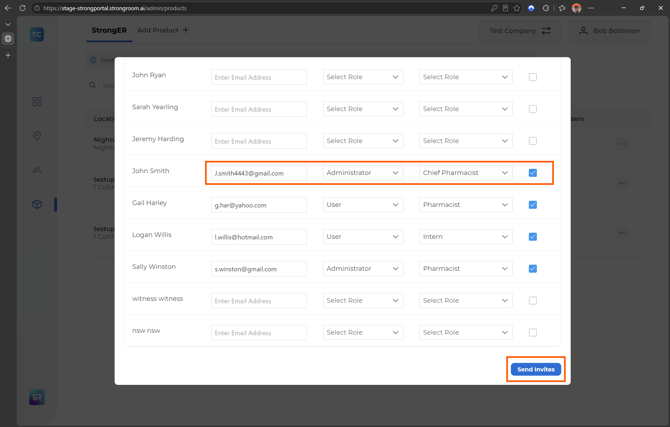
Please ensure you use personal email addresses for each user
Step 3: Send the Invitation
- Click the Send Invites button at the bottom of the pop-up window.
💡 The invited user will receive an email shortly. They must open the email, accept the invitation, and follow the prompts to complete their signup.