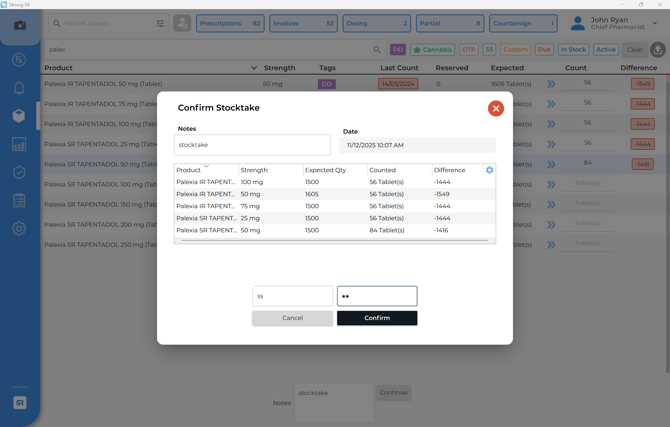
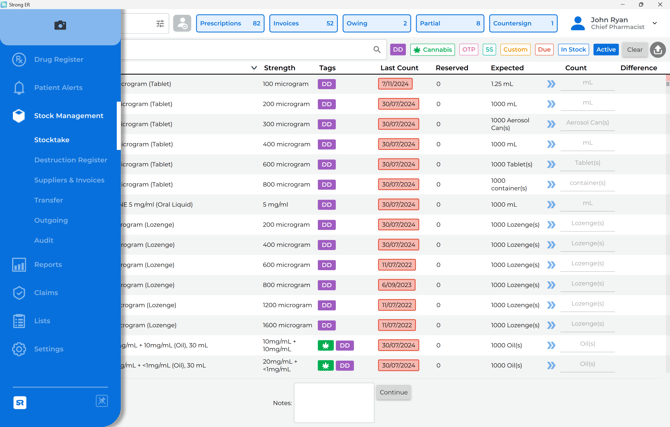
- Navigate to Stock Management using the left sidebar menu.
- Click on the Stocktake option.
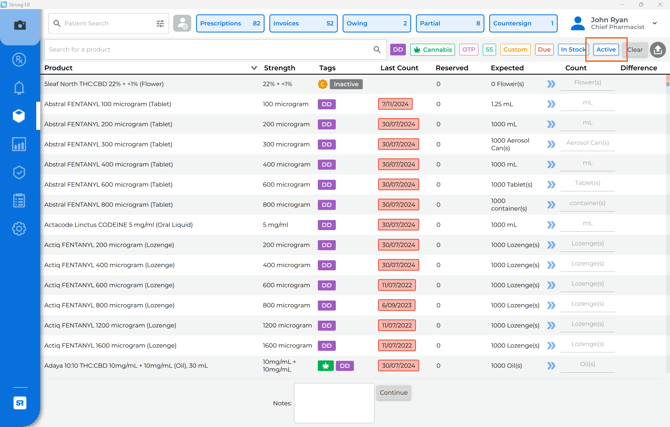
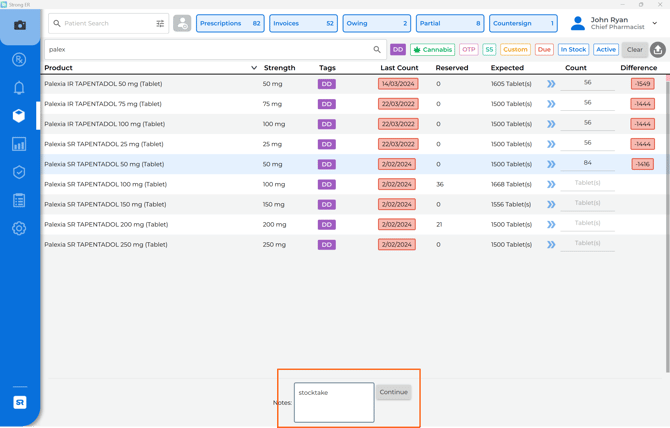
- On the stocktake screen, find the filter labeled Active and de-select it. This ensures you can view and count all products, including those currently marked as inactive.
- Go through your inventory and, for each relevant product, enter the actual current physical stock quantity into the designated field.
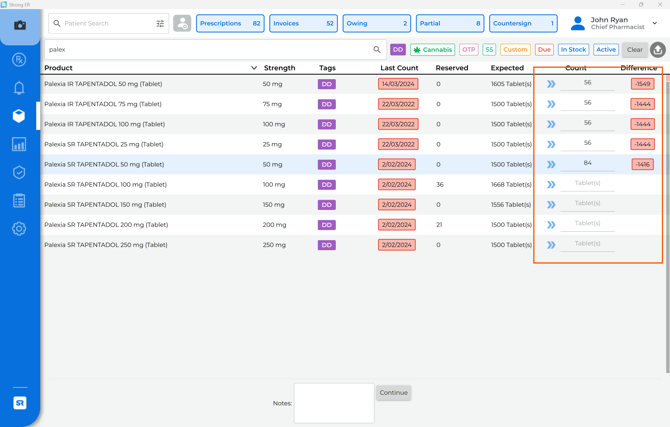
- In the text box at the bottom of the page, enter a brief note (e.g., "adding stock to drug register"). This helps with future auditing.
- Click the Continue button to review your changes.
- Confirm the stocktake and finalise the stocktake by entering your user credentials when prompted.